

How to Convert Handwriting to Text with Online OCR
UPDATED: Mar 10, 2026
To convert handwriting to text, first scan your written notes or take a photo to create an image or PDF file. Next, upload the file to an online handwriting OCR tool like Pen to Print. The AI will instantly read and extract the handwriting, allowing you to review the text and export it as an editable text or Word files, Excel, LaTeX or searchable PDF.
Step-by-Step Guide: Converting Handwriting to Text
- Scan the handwritten notes to an image or PDF file.
The conversion process of handwriting to text begins with scanning your handwritten notes into an image (such as PNG or JPEG) or PDF file. Ensure that the scanned images are clear and legible to optimize text recognition accuracy. Proper alignment and the absence of shadows or distortions are key to achieving the best OCR results. - Choose the Online OCR Tool According to Your Needs.
Pen to Print provides a suite of handwriting to text tools, each designed for specific tasks:Handwriting OCR Converter: Ideal for converting simple handwritten notes into plain text or a Word file.
Document AI Formatter: Best for notes with unique layouts and styles, capturing elements such as titles, bullet points, and bold text, ensuring preservation of the document's original format, layout, and style.
Searchable PDF Maker: Suitable for storing the original scanned image while making its content easily accessible and searchable.
Math Converter: Specifically for converting scanned handwritten mathematical expressions, equations, and formulas into digital formats.
Tables & Forms Digitizer: Transforms scanned handwritten tables and charts into Excel or Word formats.
Form Data Processor: Extracts data from hand-filled forms to Word and Excel documents.
- Upload the scanned document into the input box and convert.
Upload or drag and drop the scanned document (PNG, JPG, JPEG, or PDF) into the designated area. You can upload up to 50 pages in each session and proceed to convert handwriting to text. - Review the text vs. the scanned image.
After the conversion is complete, compare the digital text with the original scanned document. This review is recommended for verifying accuracy, as OCR technology may occasionally misinterpret unclear handwriting or intricate formats. A thorough review ensures fidelity and completeness. - Make corrections if needed.
During the review, if any mistakes or inaccuracies are found, make necessary corrections to maintain the integrity and accuracy of the converted text. - Choose the Format for Download
Choose your preferred download format: TXT, DOCX, PDF, XLSX, CSV, or LaTeX, or simply copy the text to your clipboard.
 Handwriting OCR Converter
 Document AI Formatter
 Searchable PDF Maker
 Math Converter
 Tables & Forms Digitizer
 Form Data Processor
Converting handwriting to text using Pen to Print's online OCR tools offers a straightforward and effective solution for digitizing handwritten content. By following the detailed steps and selecting the right tool for the task, users can convert handwriting to text efficiently, tailored to specific requirements from simple notes to complex document layouts.

Cursive Reader: Convert Illegible Handwriting to Text
Convert cursive and messy handwriting to text with online OCR
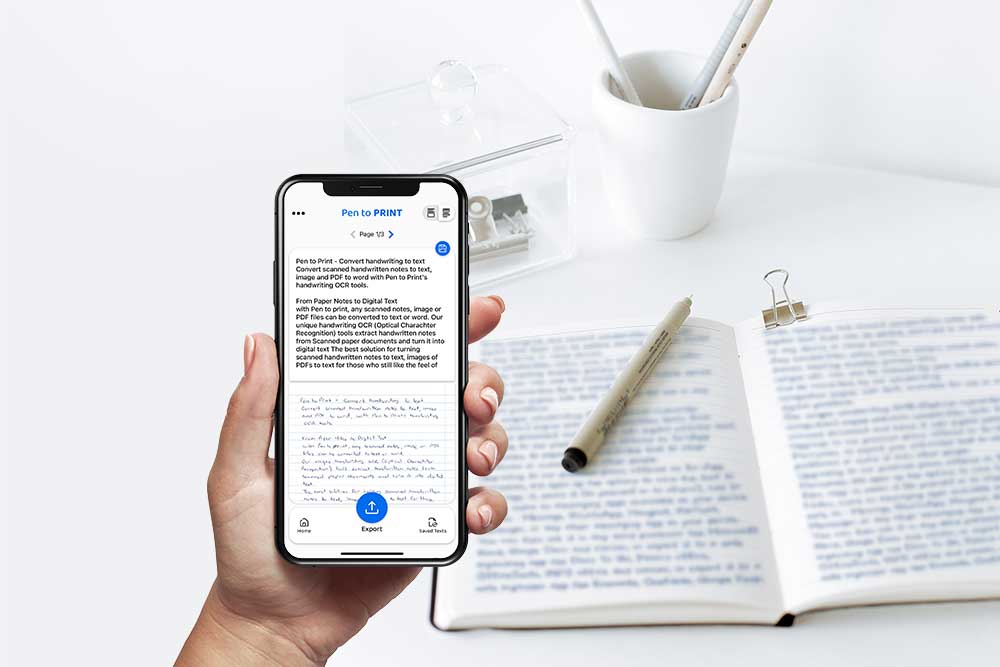
What is the best handwriting to text app?
Convert notes to text on the go with Pen to Print Handwriting to Text app