
How to Convert Handwriting to Text
UPDATED: Jan 13, 2026
In our increasingly digital world, the ability to convert handwritten notes and documents into editable text is a game-changer. Whether you're a student trying to digitize lecture notes or a professional looking to streamline your workflow, finding the right solution for converting handwriting to text is crucial. There are many solutions available for converting handwriting to text, each with its own use case, advantages, and features:
1. Online OCR Websites:
There are many online OCR websites that allow you to upload scanned documents or images and convert them into editable text. These websites often provide a simple and user-friendly interface for the conversion process of image to text or PDF to Word. Examples include OnlineOCR, OCR.space, and FreeOCR. These websites can be a convenient solution if you prefer to convert an image to text without the need to download any software or applications. Although they are not designed for converting handwriting to text, they can offer a decent solution in some cases.
2. Scanning and OCR Mobile Apps:
There are several mobile apps available that can be used for converting scanned handwritten image to text directly on your smartphone or tablet. These apps utilize the device's camera to capture images of handwritten content and convert it into digital text. Examples include Evernote, Adobe Scan, and Microsoft Office Lens. These apps offer many scanning and organizing features including OCR. These apps are also not designed for converting handwriting to text and offer a limited solution for handwriting OCR.
3. Handwriting Recognition Software:
Various software applications are specifically designed for handwriting recognition. These software solutions often offer a range of features such as conversion of handwriting to text, form recognition, and note organization, all based on the conversion of image to text or PDF to Word. Examples include MyScript, Nebo, and Microsoft OneNote.
4. Scanning and OCR Software:
Scanning your handwritten notes or documents and using optical character recognition (OCR) software can also convert them from image to text and from PDF to Word. This method involves scanning the handwritten pages and then using OCR software to recognize and convert the text. Examples of OCR software include Adobe Acrobat, ABBYY FineReader, and Google Drive OCR. These software tools are not designed for converting handwriting to text, and their results may be limited.
When selecting a solution, consider factors such as accuracy, ease of use, compatibility with your devices, and additional features that may be relevant to your needs. Assess your specific requirements and choose the OCR solution that best suits your preferences and budget.
While there are many options available that can be used for converting handwriting to text, one standout solution that specializes in handwriting OCR, designed for this purpose only, and delivers unparalleled accuracy is Pen to Print. With its online OCR service and mobile apps, it offers the most accurate results and a seamless conversion experience, transforming any handwritten image to text and PDF to Word.
Pen to Print goes beyond traditional OCR (Optical Character Recognition) services that primarily focus on printed or typed text. It has honed its expertise in handwriting OCR, allowing it to excel in recognizing and converting scanned handwritten image to text with exceptional precision. While others offer handwriting OCR among other things (PDF editing, document scanning, traditional OCR, note organization), Pen to Print is 100% focused on handwriting OCR and best converting handwriting to text. By dedicating all its resources and expertise to handwriting OCR, it has been able to develop advanced algorithms and techniques that specifically address the challenges posed by converting diverse handwriting styles into editable digital text, offering the most efficient and accurate conversion of handwritten image to text or PDF to Word.

One of Pen to Print's main strengths is its ability to decipher cursive and unreadable handwriting and achieve extremely accurate results as an illegible handwriting and cursive reader. This unique capability empowers individuals with difficult-to-read handwriting to confidently convert their handwritten notes, documents, or letters into clear and editable digital text with online OCR, ensuring that the original content is faithfully preserved.
Handwriting OCR Online
Pen to Print's online OCR service is the optimal solution for converting scanned handwritten image to text, particularly when dealing with a substantial volume of scanned handwritten notes. This service excels in accurately converting all types of handwriting, including illegible and cursive script, into text.
Key features:
Available online for any device (mobile and desktop).
No need to download any software.
Easy to use.
Supports the conversion of both PDF and image files.
Easily convert multipage documents (up to 50 pages per file!).
Export the texts as either txt or Word files.
The first 10 pages are free!
How to convert handwriting to text online?
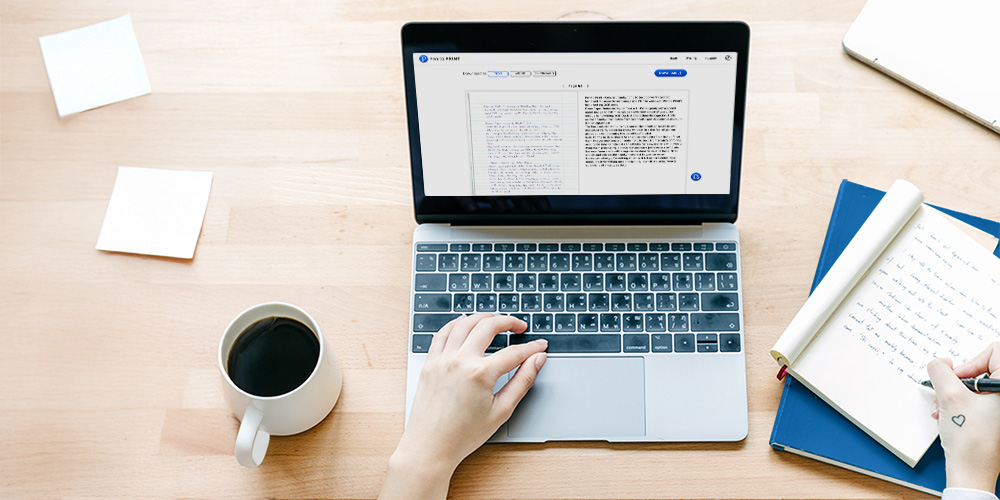
Drag and Drop a scan of handwritten notes (image or PDF) and convert the handwriting to text.
Compare the converted text to the scan and make minor corrections, if needed.
Choose the format you wish to export to (txt or Word file) and download it to your device.
Handwriting to Text App
Pen to Print's mobile app is perfect for casual use, with a few pages here and there. Always with you on your device, ready to easily scan handwritten notes with the device's camera and convert the image to text.
Key features:
Installed on your device, easy access.
Easy to use.
Fast Scan-to-Text process.
Supports the conversion of several images into a single file.
Export the text as Word or txt file.
Export to other apps installed on the device.
How to use the app to convert handwriting to text?
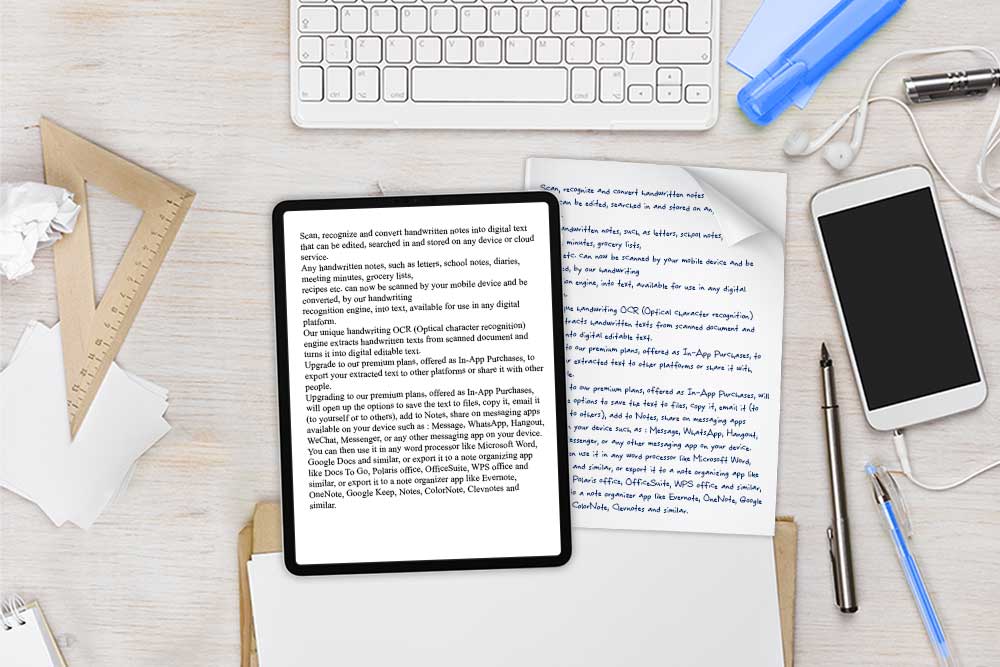
Scan a handwritten document or import from your Camera Roll/Gallery
Compare the converted text to the scan, row by row, and make minor corrections, if needed.
Export the text to other apps on your device, share it with others, or copy/paste it to other platforms.


Conclusion
The ability to convert handwriting to text has become an essential need in our digital age. Pen to Print stands out as the ultimate solution for this task, offering both an online OCR service and mobile apps that cater to different user requirements. With its focus on handwriting OCR and unparalleled accuracy, Pen to Print surpasses traditional OCR services and delivers exceptional results in converting handwriting to text. Whether you choose the online OCR service for intensive conversion needs or the mobile app for casual usage, Pen to Print provides a seamless and efficient conversion experience, transforming any image to text and PDF to Word. Its unique capability to decipher even the most unreadable handwriting and preserve the original content sets it apart from other solutions. With Pen to Print, converting your handwritten notes to editable digital text has never been easier or more accurate. Embrace the power of Pen to Print and unlock the full potential of your handwritten content in the digital realm.
Still have questions about how to convert handwriting to text?
Check out our Frequently Asked Questions or Contact Us for further assistance.