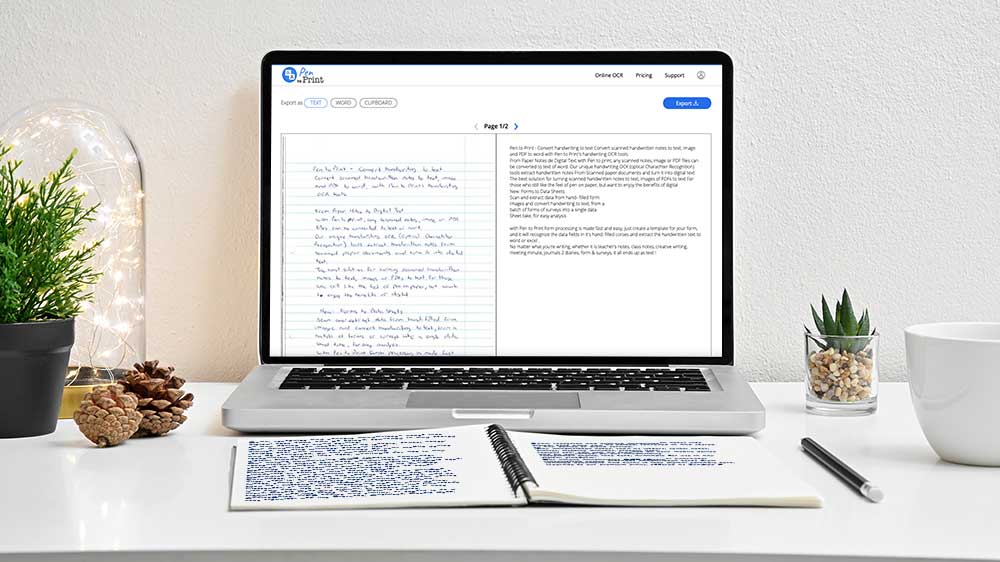

How to extract handwritten text from PDF to Word?
UPDATED: Jun 22, 2025
Extracting handwritten text from a PDF document into a Word file is an invaluable skill for both professional and personal use. Whether dealing with plain handwritten notes or formatted handwritten text, the need to turn static documents into editable formats is increasingly prevalent. Pen to Print offers innovative online OCR tools designed to make this conversion process efficient and user-friendly. This guide outlines a simple, step-by-step approach to extracting handwritten text from PDF to Word documents using Pen to Print's robust tools.
- Scan the Handwritten Notes to PDF File.
The first step in the conversion process is to scan your handwritten notes or documents into a PDF file. Use a scanner or a smartphone with a scanning app to capture clear and legible images of your notes. Ensure that the scanned images are well-aligned and free from any shadows or distortions to achieve the best OCR results. - Choose the Tool According to Your Needs: Plain Text vs. Formatted Text.
Once you have your notes scanned into a PDF, the next step is to select an online OCR tool that suits your needs. Pen to Print offers two main options: Handwriting OCR for plain text conversion and Document AI for formatted text conversion. Choose Handwriting OCR if your document is primarily handwritten text, and opt for Document AI if your PDF contains more complex formatting or structured content. - Drag and Drop the Scanned PDF into Pen to Print's Online OCR Input Box and Convert.
Upload or drag and drop the scanned PDF into the designated area. Upload up to 50 pages at each session and continue to extract the text from PDF to Word. - Review the Text vs. the Scanned Notes.
After the conversion is complete, review the extracted text against your original scanned notes. This step is recommended to ensure that the OCR tool has accurately captured the content. Check for any discrepancies or errors in the text, particularly with handwritten documents where handwriting styles might vary. - Make Corrections, if Needed.
If you notice any mistakes or inaccuracies during your review, make necessary corrections to maintain the integrity and accuracy of the converted text. - Download as Word to Your Device, Where You Can Edit, Search, and Store.
Once you are satisfied with the accuracy of the converted text, download the document in Word format to your device. By doing so, you have transformed your handwritten notes into a fully editable Word document, which you can now easily edit, search for specific information, and store digitally for future reference.
 Handwriting OCR Converter
 Document AI Formatter
Extracting handwritten text from PDF to Word files using Pen to Print's online OCR tools can significantly enhance how you manage and utilize textual information. By following the outlined steps - from scanning to selecting the appropriate tool and making necessary corrections - you can efficiently transform static handwritten notes into dynamic, editable documents. This process not only saves time but also improves the accessibility and usability of your documents, supporting enhanced productivity in both academic and professional settings. Pen to Print's tools embody the fusion of simplicity and power, ensuring that PDF to Word conversions are both precise and hassle-free.