

Converting Handwritten Notes to Text Online
A Step-by-Step Walkthrough
UPDATED: Jan 27, 2025
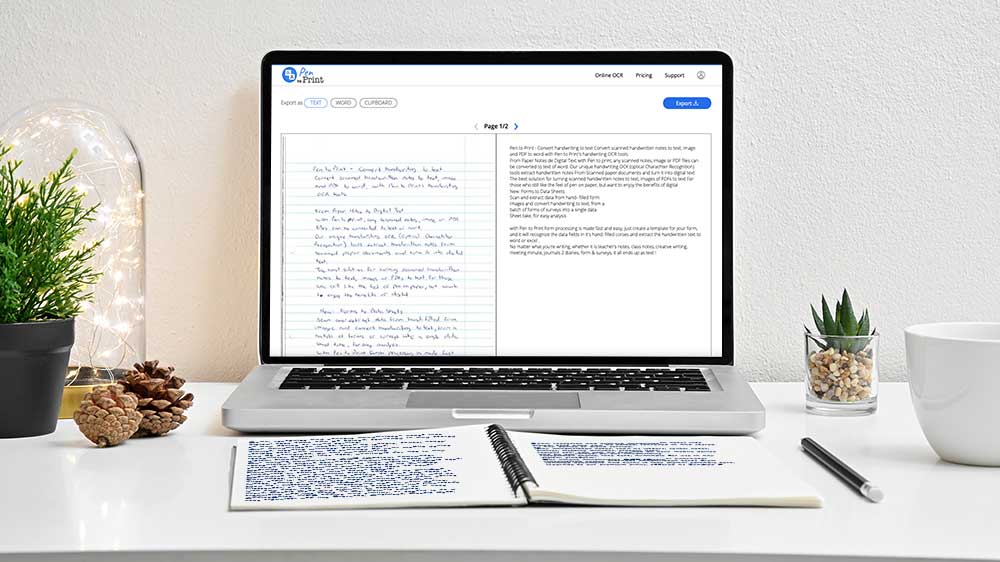
Pen to Print is a fast and easy online OCR (Optical Character Recognition) tool that makes converting scanned handwritten notes into editable text a breeze. In this walkthrough article, we will guide you through the process step by step, helping you convert your handwriting to text.
Step 1: Scan Your Handwritten Notes
The first step in converting handwriting to text with online OCR is to scan the handwritten notes using a desktop scanner or even a mobile device's camera. Ensure that the scanned document is clear, focused, and well-lit and that the page is straight, not folded, or deformed. Save the scanned notes as a PDF or an image file (such as JPG or PNG) on your device for further online OCR processing.
Step 2: Upload Your Scanned Document
Simply drag and drop your scanned PDF or image into the designated upload box.
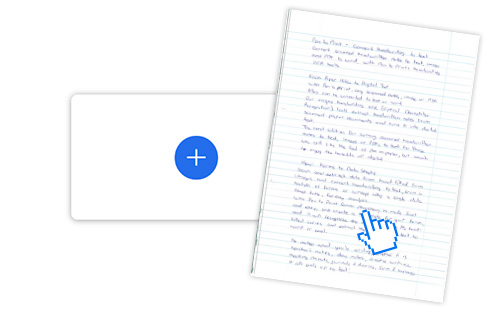
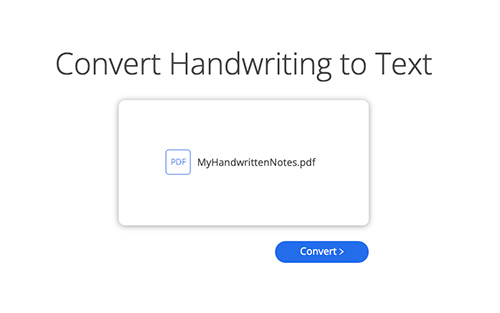
Click the "convert" button to initiate the OCR process. The online OCR engine will work its magic, analyzing the content and converting your scanned handwriting to text. Be patient as this may take a few seconds.
Step 3: Review and Correct Any Mistakes
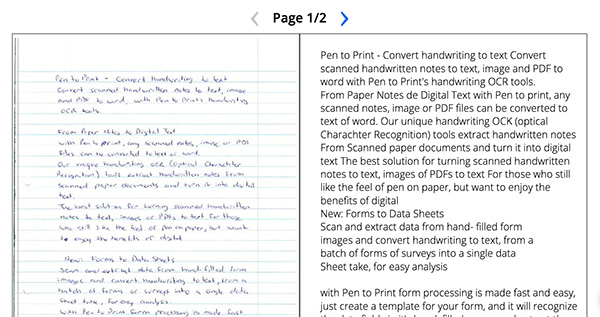
Once the conversion is complete, you'll see the output text displayed next to the original handwritten scan. It's a good practice to review the converted text and compare it to the original handwritten document. While Pen to Print is efficient and mostly accurate, some handwritten text can be tricky, and mistakes may occur in the process of converting handwriting to text. Correct any errors by clicking on the output text and making the necessary edits.
Step 4: Choose Your Preferred Output Format
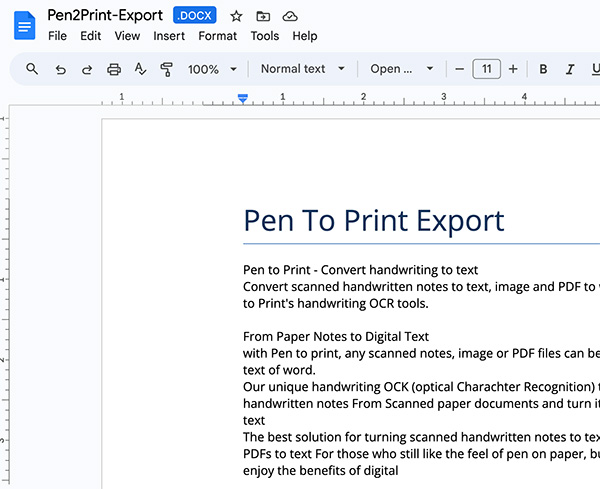
Pen to Print offers flexibility in terms of output formats for the digital text. You can choose to download the converted text as a plain text (TXT) file or a Microsoft Word (DOCX) document. Alternatively, if you want to use the text immediately, you can copy it to your clipboard and paste it into your preferred application. Select the option that best suits your needs.

Step 5: Save the Converted File
After you have reviewed and made any necessary corrections, and chosen your preferred output format, it's time to save the converted file to your device. Simply click on the download button to save the text to your device, so you can later edit and use the text according to your needs.
Have any questions?
Check out our Frequently Asked Questions or Contact Us for further assistance.

Document AI: Handwritten Notes to Formatted Word
Use AI to preserve handwritten style and layout

Handwriting OCR as a Cursive Reader
Use handwriting OCR online tools as a cursive translator.