
Extract Handwritten Data from Forms to Excel
Automated handwritten form processing with no predefined template needed. Extract hand-filled data fields from images or PDFs to Excel — a pile of invoices, surveys, or applications, batched into a master spreadsheet.
Start FreePen to Print's Form Data Extraction tool automatically converts handwritten forms to Excel. Advanced AI and OCR detect and extract handwritten data fields from a whole batch of forms into one master spreadsheet. Save hours of manual data entry and avoid typing errors with automated handwritten data extraction and form processing.
- Forms
- Surveys
- Applications
- Invoices
- Form Processing
- Forms to Excel
- PDF to Excel
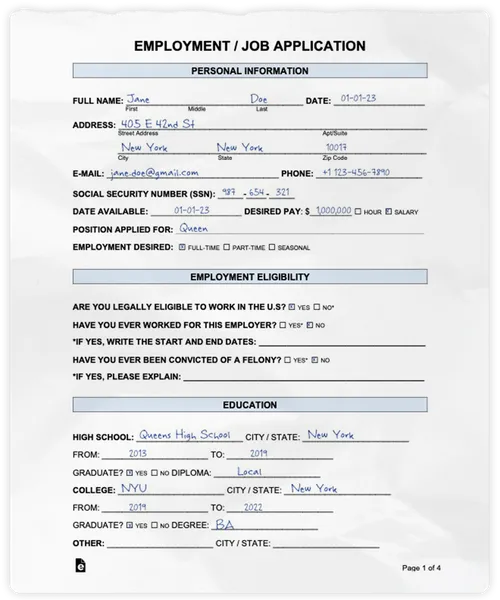
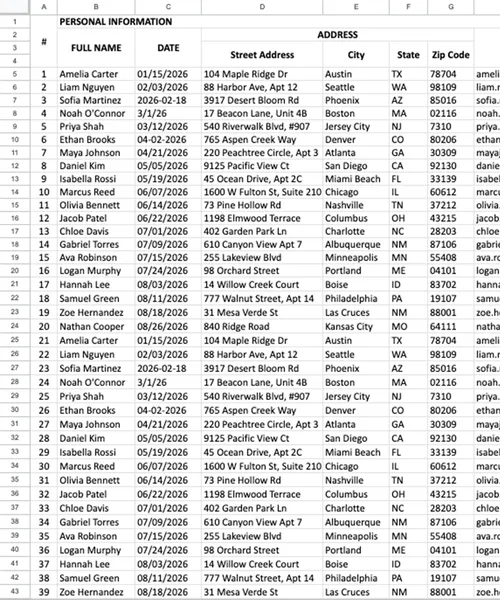
Convert Any Hand-filled Form to Excel
Invoices, receipts, applications, surveys, timesheets, order forms — any handwritten paper form, processed in batches from PDF to Excel as structured data.

Capture data from handwritten invoices
Pull invoice numbers, dates, vendor names, amounts, and notes from handwritten invoices to Excel — clean digital records without retyping by hand.

Pull data from handwritten intake and application forms
Capture names, contact details, answers, and notes from handwritten intake packets and application forms to Excel, ready to sort and filter.

Extract data from timesheets and attendance sheets
Capture names, dates, and hours from handwritten timesheets and attendance sheets for payroll and recordkeeping.

Extract data from quotes and order forms to Excel
Pull line items, quantities, prices, and totals from handwritten quotes and order forms into a ready-to-use spreadsheet.

Capture data from receipts and expense records
Digitize handwritten receipts, expense notes, and supporting paperwork for easier reconciliation, review, and finance follow-up.

Collect data from satisfaction surveys to Excel
Pull ratings, scores, and written feedback from handwritten satisfaction surveys and feedback forms into a spreadsheet you can sort and analyze.
Automate Data Entry with AI Field Detection
Pen to Print's batch form processing technology turns hours of tedious typing into an automated workflow. Manual data entry isn't just slow, it's prone to costly typing mistakes. The Form Data Extraction tool acts as an automated data entry clerk, ensuring a fast and accurate process.

Automatic Field Detection
Skip the setup: just upload your forms and the AI automatically detects every data field and maps each one to its own Excel spreadsheet column. You can save the detected fields as a reusable template for forms you process regularly — guaranteeing the same keys land in the same columns every time.

High-Volume Handwritten Data Extraction
Upload entire batches of scanned handwritten forms, images, or PDFs at once. The OCR engine processes them simultaneously, taking a stack of unstructured paperwork from PDF to Excel — perfectly aligned rows in one organized spreadsheet.
How to Extract Data from Hand-filled Forms to Excel
Handwritten form processing: from a batch of paper forms to a structured Excel spreadsheet — in three steps.
Upload & Detect
Upload scanned images or PDFs of your hand-filled forms — the AI automatically detects the data fields and extracts the values.
Review & Save
Review the extracted data side-by-side with the original scan to verify accuracy. Save the detected fields as a reusable template for forms you process regularly.
Download to Excel
Export the results to an Excel or CSV spreadsheet — a column per field, a row per form.
How do I extract handwritten data from forms to Excel?
Upload a batch of your scanned hand-filled forms and the AI automatically detects the data fields and extracts the values. Review the extracted data in a table side-by-side with the original scans, then export it as an Excel or CSV spreadsheet (one column per field, one row per form). For forms you process regularly, you can save the detected fields as a reusable template.
Can I use this to extract data from handwritten invoices?
Yes — invoices are one of the most common use cases. Upload a batch of scanned invoices and the AI captures the invoice numbers, dates, vendor names, line items, amounts, and totals into a single Excel sheet, ready for bookkeeping or accounts-payable review — no more retyping line items into your accounting system. For invoices that arrive in a consistent layout, you can save a template once so every batch comes out mapped the same way.
Can the Form Data Extraction tool replace manual data entry in my business?
For any workflow that involves retyping handwritten forms — applications, intake sheets, surveys, order forms — yes. The AI extracts every field across an entire batch of scans in one pass, eliminating the per-form typing time and the typos that come with it.
Is my data secure and private when I use the Form Data Extraction tool?
Yes. We take data privacy very seriously. Your files are encrypted in transit and are deleted automatically from our servers as soon as the extraction completes. We do not store, access, use, or share your content in any way — your data stays under your control. For more details, see our Privacy Policy.
Should I use Form Data Extraction or the Tables Digitizer for my document?
Use Form Data Extraction when your document is a form with defined fields — an application, invoice, or intake sheet where you want each field mapped to a column in a spreadsheet. Use the Tables Digitizer when your document is a freeform handwritten table or list where preserving the original row/column grid is what matters.
Can the Form Data Extraction tool handle messy or cursive handwriting?
Yes. Pen to Print's Cursive Reader is applied across all our tools, so the data extraction tool stays accurate even when the handwriting in your forms is messy, slanted, or cursive.

Handwritten Document Processing for Business and Teams
Turn your team's handwritten invoices, forms, and notes into clean digital files.
Read more How to Digitize Handwritten Invoices and Reduce Paperwork
Discover how to turn paper invoices into clean, accurate digital data.
Read more